Documentation
- Overview
- Introduction
- Typical workflow
- Editions & licensing
- Install & setup
- System requirements & installation
- Update / reinstall
- Configure your job
- Settings
- Panel Parameters
- Selected parts configurator
- Machining Drawings
- Nest & output
- Running FastNesting
- Export & reports
- Reading the Rhino layout
- Reference & help
- Command reference
- Best practices
- Troubleshooting & support
- Purchase & invoice
- FAQ
This documentation is adapted to FastNesting version 1.2.3.1.
Introduction
FastNesting is an optimization plugin for Rhinoceros 3D that helps furniture workshops move from a 3D model to nested layouts, cut lists, labels, and technical reports without leaving Rhino. It is designed for panel and melamine work; rectangular pieces are the common case, and many non-rectangular outlines are supported using a tighter footprint for nesting and reports.
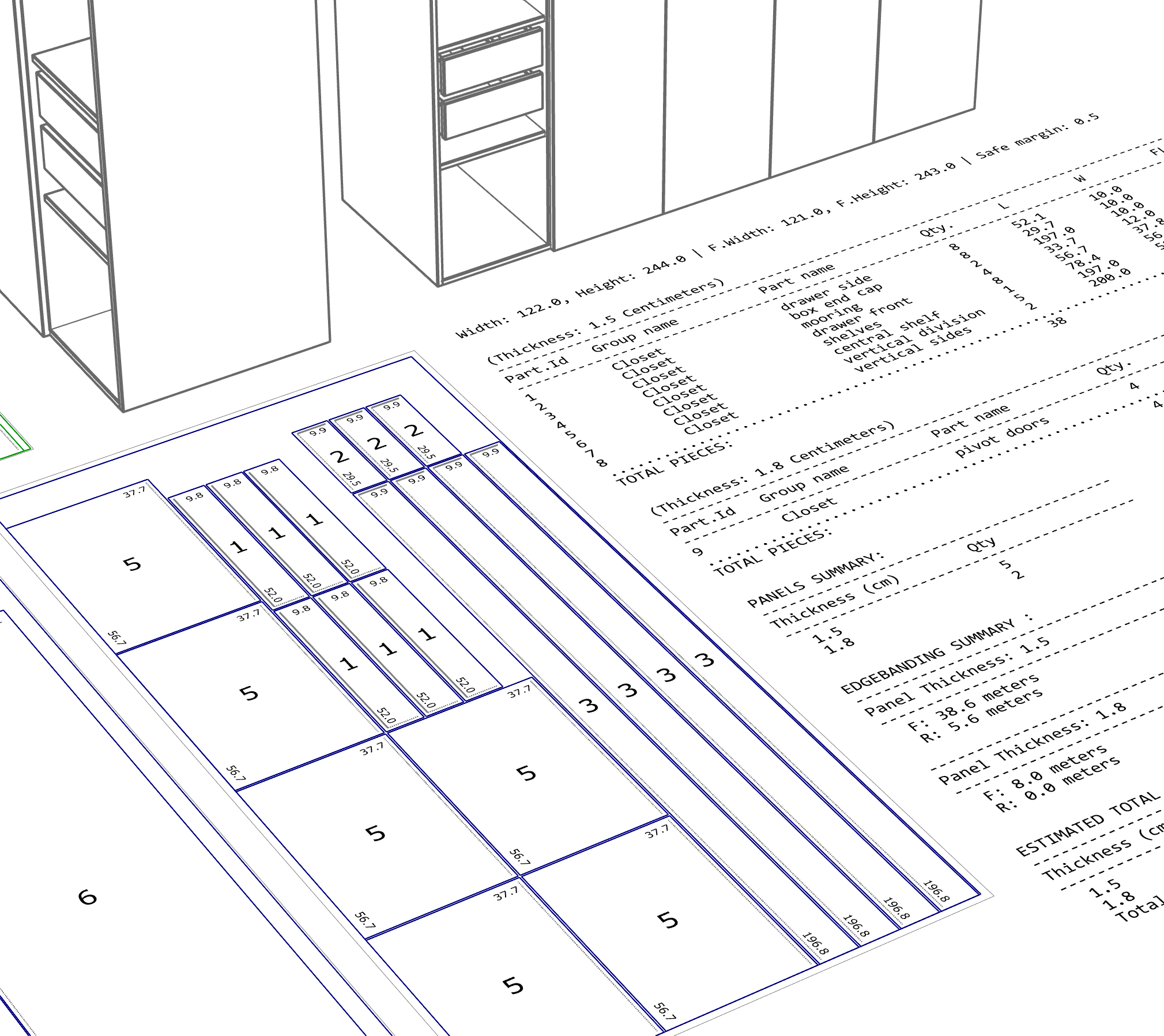
From 3D model to nested Rhino layout with cut list report. This online manual is kept current for version 1.2.3.1.
What's New in 1.2.3.1
-
Nesting refinementsTargeted improvements to the nesting engines for better everyday layouts.
-
Nesting layout originIn Settings, choose the starting X and Y of the nesting layout in Top View.
-
Clearer panel titlesNesting diagrams in Rhino and PDF show Usage % and Parts on each panel title.
-
Find Part by NumberClearer name in the FastNesting menu (same command as before).
Earlier 1.2.x highlights — FastNesting menu, Rhino 9 WIP, report columns, barcode labels, Notes, Mult, Auto rotation, and machining drawings — remain in this release and are covered in the sections below.
Typical workflow
At a glance, a FastNesting job goes from 3D model to cut-ready layout in a few steps. Each step links to its full section below.
Model furniture in Rhino
Create your furniture using panel-based geometry (3D solids) in Rhino.
Organize materials
Use Rhino layers to represent materials — the layer name is the material in FastNesting. See Selected parts configurator and Panel Parameters.
Organize assemblies
Use Rhino groups and SetGroupName where needed, or GroupEdit_FastNesting to rename groups without ungrouping.
Analyze parts — run FastNesting
Select the solids and run FastNesting. FastNesting analyzes the parts; on the first run, Settings opens once to confirm units and defaults.
Configure production settings
In the Selected parts configurator, define or adjust part names, grain, edge banding (PRO / Trial), and per-material panel settings (PRO / Trial). Review the read-only Material column (from Rhino layers). Open Panel Parameters for sheet size, kerf, and grain behavior; enable Machining Drawings if needed (PRO / Trial).
Generate production output
Continue to nest, then generate nested drawings in Rhino, Excel production reports (PRO), and PDF technical reports (PRO / Trial). See Running FastNesting, Export & Reports, and Reading the Rhino layout.
Find parts in 3D (optional)
Use Show3DPieceNumbers_FastNesting to jump from a cut-list number back to its source solid in the model.
Editions & licensing
PRO trial: Eligible users can evaluate full PRO features for 10 calendar days. During the trial you use the same PRO tools documented in this manual. When the trial ends, FastNesting switches to the Free edition unless you activate a PRO license.
Basic Features
- Up to 16 pieces
- Basic nesting & Rhino reports
- No edge banding (R/F)
- No PDF/Excel export
- No machining drawings
- No panel params per material
After trial expires
All Features Included
- Edge banding (R/F) calculation
- PDF & Excel export
- Machining drawings (2D)
- Panel parameters per material
- Part clearance & estimated weight
- Smart labeling system
- Mult copies & 3D piece-number labels
- No fixed piece-count limit for PRO nesting
System requirements & installation
System Requirements
- • Windows: Rhinoceros 7 or 8
- • macOS: Rhinoceros 8
- • RAM: Minimum 4 GB; recommended 8 GB for normal use, 16 GB for demanding Machining Drawings projects
- • Internet: Required for PRO license activation and deactivation
FastNesting can be downloaded from Food4Rhino, our official Rhinoceros 3D plugin marketplace, from here, or installed directly within Rhino using the Package Manager.
To install via Package Manager
- Ensure you have Rhinoceros 7 (Windows), Rhinoceros 8 (Windows or Mac), or Rhinoceros 9 WIP. FastNesting is available in the Package Manager on Rhino 7 (Windows) and Rhino 8 (Windows/Mac); Rhino 9 WIP uses the matching package when published.
- Open Rhino.
- In the command line, type
PackageManagerand press Enter. - In the search bar, type FastNesting.
- Click Install and restart Rhino if prompted.
FastNesting will start in trial mode until the trial period expires, after which it will switch to the Free version or can be activated as the Pro version.
To install from a download
If you prefer to install from a direct download instead of Package Manager, get the .yak file from our website or Food4Rhino:
- Rhino 7 (Windows) and Rhino 8 (Windows/Mac): Uninstall any previous version from Package Manager first, then open Rhino and drag the
.yakfile onto the Rhino viewport (or Rhino window). Restart Rhino if prompted. Use the package that matches your Rhino major version. On Mac, FastNesting runs on Rhino 8 only.
Update / reinstall
Recommended (Mac and Windows): Use Rhino's Package Manager. In Rhino, type PackageManager in the command bar, uninstall the previous FastNesting version, then install the new one. Your license is not affected and should register automatically. Restart Rhino after the update so the new version loads correctly.
Manual installation
- Rhino 7 (Windows) and Rhino 8 (Windows/Mac): Download the matching
.yakpackage from our website or Food4Rhino. Uninstall the previous version from Package Manager first, then open Rhino and drag the .yak file onto the Rhino window to install. On Mac, FastNesting runs on Rhino 8 only.
If you see problems or suspect corrupted files from an older install, remove the plugin folder before reinstalling: in Rhino go to File → Properties (or Rhino → Preferences on Mac), open Plug-ins, find FastNesting in the list, right-click it and choose Open containing folder. Delete only the contents of the FastNesting folder (do not delete files outside that folder), then install again using Package Manager or by dragging the .yak onto Rhino.
In all cases: Restart Rhino after uninstalling and again after installing so that changes take effect.
Keeping your license and settings when updating
In most cases your PRO license and settings are preserved when you update: after installing the new version, open Rhino and your license should still be active.
If you have licensing problems after updating
If after updating you see license errors, "invalid license", or the plugin does not recognize your PRO license, do the following to reset and re-activate on this computer:
- In Rhino, run
License_FastNesting. - Click Deactivate License. This releases this computer from your license, so you can activate on another computer or re-activate here after reinstalling.
- If you installed via Package Manager: open Rhino, go to Tools > Package Manager, search for FastNesting, click Uninstall, then close Rhino. Otherwise, close Rhino.
- Install the new version of FastNesting (see How to update above).
- Open Rhino, run
License_FastNesting, and activate again with your same email and license key.
This process is the same on Windows and Mac. Your license key is not lost; you are only deactivating this machine so you can activate again cleanly.
Settings
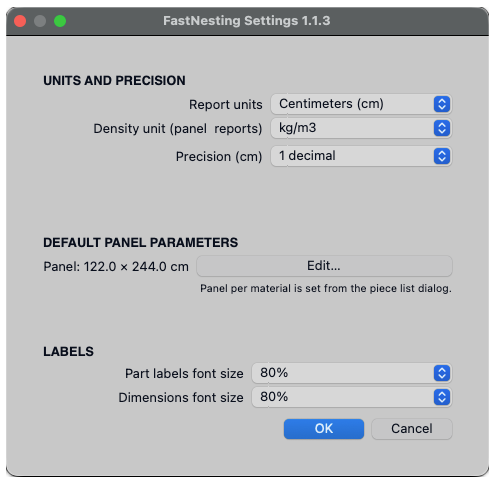
Panel parameters and units are centralized in Settings. Open it from the Selected parts configurator footer or by running Settings_FastNesting. Here you set report units (mm, cm, or in), default panel parameters (with an Edit… button that opens Panel Parameters), fraction precision for inches, the nesting layout origin (starting X and Y in Top View), drawing and labels (part and dimension font sizes, optional 3D piece numbers on source solids, and Distinguish by machining for numbering), and density unit (PRO). In PRO you can also open report / label layout: which cut-list columns to show, barcode on stickers, and optional Notes on parts. Panel per material is configured from the Selected parts configurator.
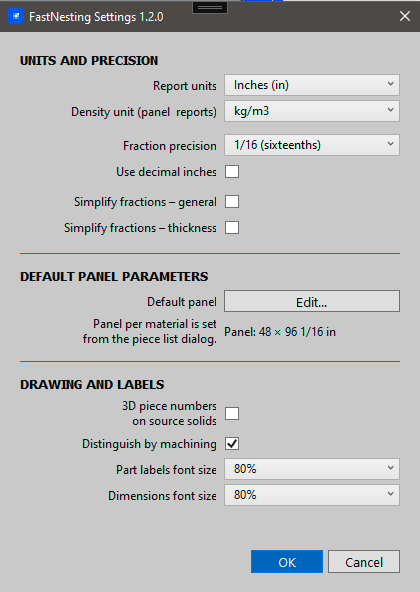
System Units / Report Units
Report units (millimeters, centimeters, or inches) are set in Settings. This is the standard for all outputs. The first time you run FastNesting, the full Settings dialog opens so you can confirm units and defaults; afterward, change them anytime via Settings_FastNesting or the configurator footer.
Important: Ideally, set the Rhino document to "Small Objects".
Panel Parameters
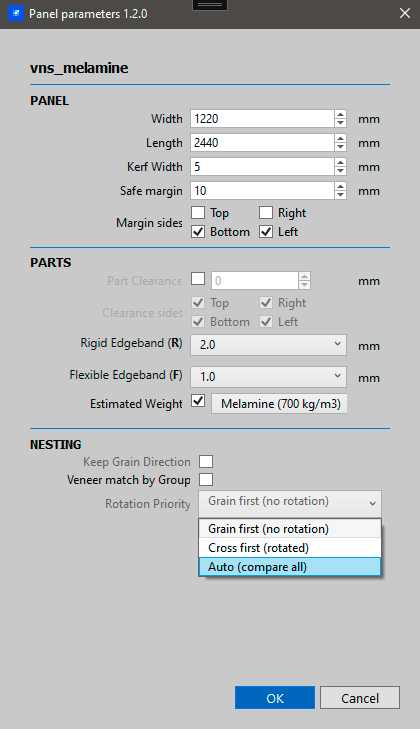
In FastNesting, each part’s material is the name of its Rhino layer. Panel Parameters sets sheet size, kerf, margins, and nesting options for the default panel or for one material (layer) at a time. When you open the dialog from Panel per material → Edit…, the bold name at the top is that material / Rhino layer. When you open it from Settings → default panel → Edit…, you edit the global defaults used by materials that do not have their own panel (and by the fallback material name Default).
White Melamine 18). Change material in Rhino’s Layers panel — not inside Panel Parameters. See also the Selected parts configurator.
Open Panel Parameters from Settings (click Edit… next to default panel parameters) or from the Selected parts configurator (Panel per material → Edit… / Default for each material).
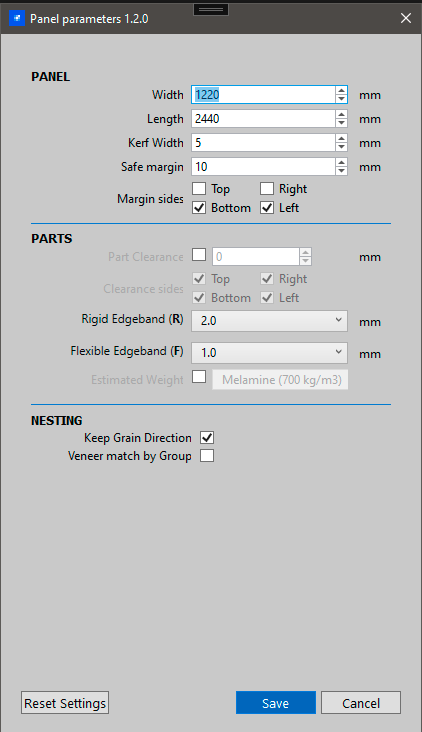
- Panel Size: Set sheet length and width — thickness is detected automatically from your Rhino model.
-
Blade Kerf: The customizable width of your cutting tool. Common values:
- 0.3 cm (3mm) Standard for most CNC router bits and thin kerf saw blades.
- 1/8" for imperial measurements: Common for full kerf saw blades.
- Safe Margin: The customizable edge margin to avoid damage. Typical: 0.5cm (5mm) or 1/4"
- Part Oversize (PRO): Optional oversize around nested pieces on the sheet; set in this dialog (per-side margins when enabled).
-
Edge Banding Thickness: Select from the most common thicknesses for your edge material.
If you plan to use edge banding, you should verify or adjust these values for the desired type R or F.
Default values:- Rigid (R): For thick edge banding (2mm) | (5/64 in)
- Flexible (F): For thin edge banding (1mm) | (3/64 in)
- Preset 0 mm (R / F): Cut and finished nesting sizes stay the same while you still designate edges for exports (L1/L2/W1/W2 and R/F) — useful when banding thickness is handled outside the nest.
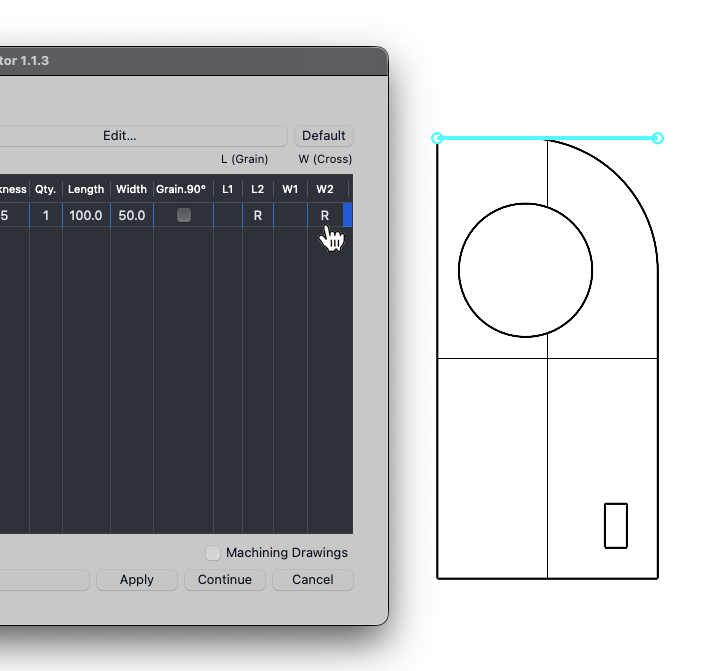
Visual representation of edge banding applied to nesting layouts.
- Keep Grain Direction: Enable when working with wood veneer to maintain grain alignment along the length. When this is off, Rotation Priority appears: Grain first, Cross first, or Auto — Auto compares more layouts and picks a preferred result (PRO).
- Veneer match by Group (PRO): When enabled, the nesting algorithm prioritizes keeping parts from the same assembly close together.
- Estimated weight in reports (PRO): When enabled, reports can include an estimated weight for the nested (cut) pieces. Use the density preset dropdown to choose a material type (e.g. MDF, Melamine, Plywood, Wood, Glass, Steel, Iron) or Custom to enter a density value in kg/m³ or lb/ft³ (depending on the unit set in Settings). The preset values match typical densities for each material so you get a reasonable weight estimate in the report.
- Save (default panel): When you open Panel Parameters from Settings, click Save to store sheet size, kerf, margins, density, and nesting options as the global default for future sessions. Materials without their own panel use these values.
Per material vs default: As noted above, each material (Rhino layer) can use its own panel parameters or the default values. Defaults are defined in Settings (click Edit… next to default panel parameters) and saved with the Save button in Panel Parameters. To set or change parameters for a specific material, open the Selected parts configurator, expand Panel per material, and use Edit… or Default for that material — Edit… assigns custom options; Default restores global defaults.
Selected parts configurator
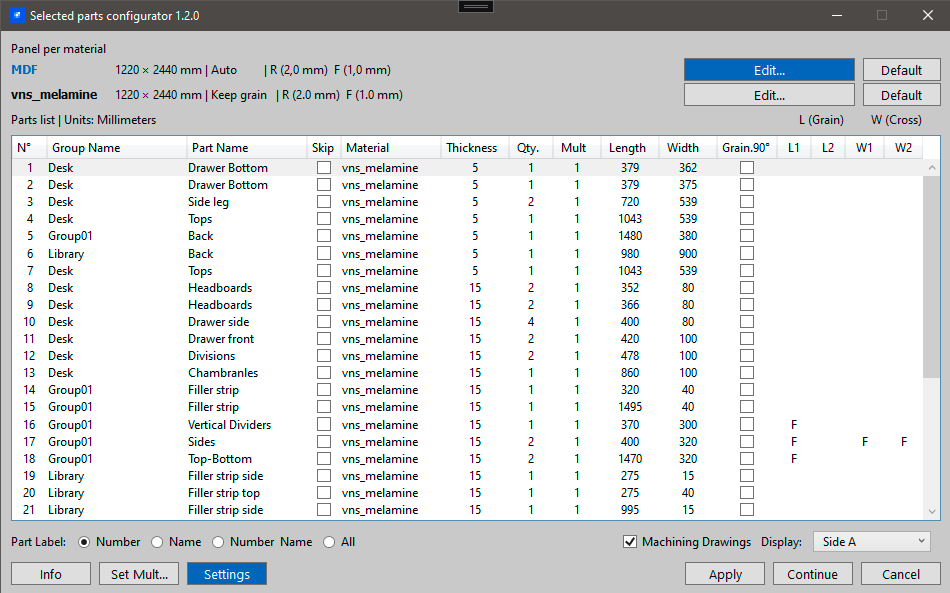
Dialog title: Selected parts configurator (sometimes called Piece Namer in product pages). The table lists selected pieces and lets you edit names, quantities, edge banding, and nesting options before the solver runs.
White Melamine 18). Change material in Rhino’s Layers panel — the Material column below is read-only.
- Part Name: Click to edit and give meaningful names (e.g., "Door", "Shelf", "Side Panel")
-
Group Name: Shows Rhino group and subgroup names. Set them with Rhino's
SetGroupNamecommand, or useGroupEdit_FastNestingto browse and rename groups without ungrouping. Double-click a group name to set Mult for that group (PRO). - Material: The Rhino layer name of the part (read-only). If no usable layer name is available, FastNesting shows Default. To change material, move the solid to another layer in Rhino, then run FastNesting again (or re-select parts).
- Skip: Check to exclude a row from this nesting run without renaming geometry. You can also prefix a part name with ! in Rhino for permanent exclusion.
-
L1/L2 and W1/W2 columns (PRO): Set edge banding by typing R or F:
- R = Rigid edge banding on that edge
- F = Flexible edge banding on that edge
- Empty = No edge banding
- L1/L2 = the two length-direction edges
- W1/W2 = the two width-direction edges
- Qty.: Physical quantity of that part in your Rhino model (how many solids you selected).
- Mult (PRO): Virtual copies for nesting — nest more instances without duplicating geometry in Rhino. Use footer Set Mult… for all active rows. Reports show the nested count; Qty. stays the model count. See FAQ — Mult vs Qty.
- Grain.90°: Fixed 90° grain orientation preference during nesting (not free rotation).
- Panel per material (PRO): Each entry is a material (Rhino layer) found in the selection. Use Edit… / Default so nesting uses the right sheet size and options for that layer — Edit… opens Panel Parameters for that material.
- Part Label: How parts appear on the layout and in reports: Number, Name, Number & Name, or All (Free: Number only).
- Machining Drawings (PRO): When enabled, FastNesting reads holes, slots, and outlines and draws them on nested parts. Use Display for Side A, Side B, and X-ray modes.
Exclude parts: Use the Skip column for this run only, or prefix the Rhino object / part name with ! (e.g., !handles) for ongoing exclusion.
Footer buttons
- Info — short in-dialog guide
- Settings — opens FastNesting Settings (units, defaults, drawing options)
- Set Mult… (PRO) — apply Mult to all non-Skip rows
- Apply — saves your edits to Rhino and plugin settings without running nesting; the dialog stays open
- Continue — saves the same changes, closes the dialog, runs nesting, then opens Export Report (PRO) or draws the Rhino layout (Free)
- Cancel — closes without saving edits made since the dialog opened
Grid selection stays in sync with Rhino: selecting rows selects the corresponding solids, and vice versa.
Machining Drawings PRO
Machining Drawings reads machining geometry from your Rhino model and draws it on each nested part in the layout. It is intended as a 2D visual reference for holes, slots, outlines, and drill centers alongside the cut plan.
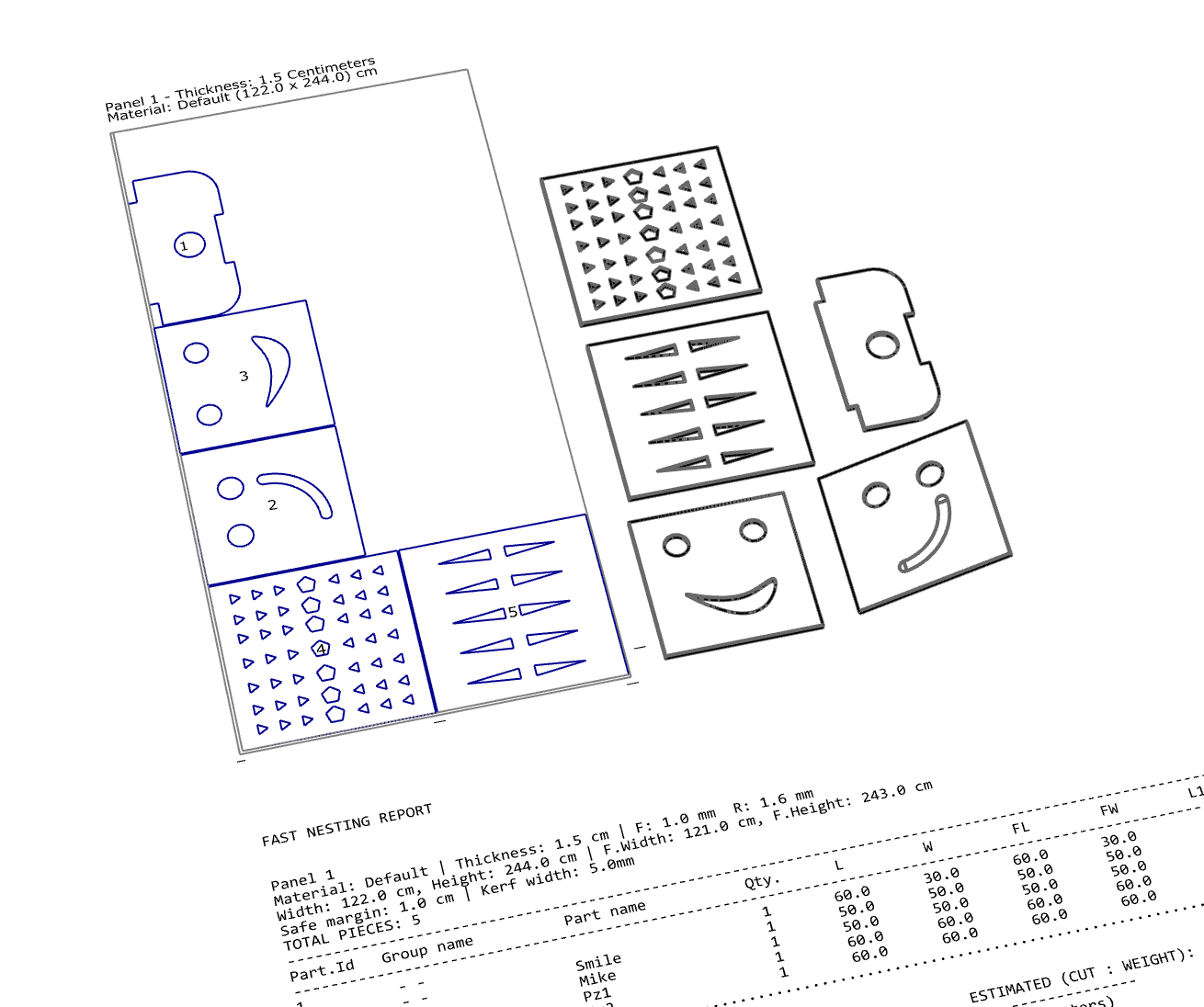
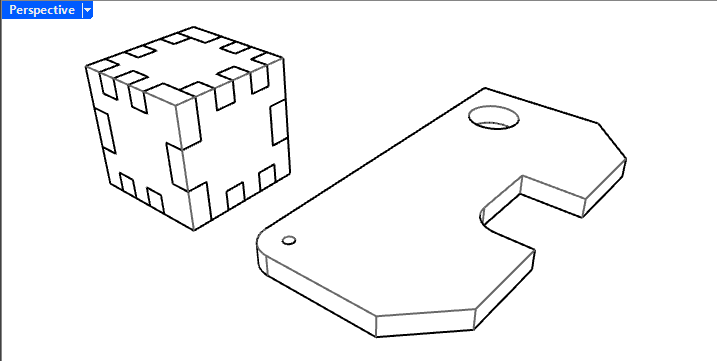
FastNesting can read panel-part geometry and, with Machining Drawings enabled, show 2D machining detail on the nested layout.
- Enable it in the Selected parts configurator before clicking Continue.
- Use Display (Side A, Side B, Side A (X-ray), Side B (X-ray)) to control which face is drawn and when both faces appear at once.
- Mirrored instances in Rhino are drawn so machining and edges match shop reality versus a non-mirrored twin.
- If you toggle it on or off, close the dialog and re-run FastNesting so pieces reload with the correct detail level.
- Machining Drawings are visual references for production planning and review; they are not direct CNC machine programs. Always visually verify machining before production.
Running FastNesting
A typical nesting run follows these steps:
- Select solids in Rhino (panel parts), or run
FastNestingwith no selection and pick objects at the prompt. - Settings (first run only) — confirm report units and defaults, then OK.
- Selected parts configurator — review names, Skip, edge banding (L1–W2), Mult, Grain.90°, panel per material, and Machining Drawings. Click Apply to save without nesting, or Continue when ready to nest.
- Large layout (if shown) — confirm before nesting on very heavy jobs with machining enabled.
- Nesting — FastNesting optimizes placement and shows progress. Press Esc to stop a long run. With Keep Grain Direction off, Rotation Priority: Auto (PRO) compares more layouts per material and picks a preferred layout among the options.
- Export Report (PRO) — after nesting completes, choose report name and Rhino, PDF, and/or Excel. Cancel closes without drawing. Free skips this dialog and draws the Rhino layout automatically. See Export & Reports.
- Layout in Rhino — nested panels and parts appear on organized layers. If some parts do not fit, FastNesting shows an Unplaced Parts or Oversized Part(s) notice.
- 3D piece numbers (optional, PRO) — enable 3D piece numbers on source solids in Settings for Text-dot labels after nesting, or run
Show3DPieceNumbers_FastNestingafterward. See Command reference.
Configure defaults first in Settings and Panel Parameters so each run starts with the right sheet size, kerf, and units.
Export & Reports
The Export Report dialog appears after nesting finishes in PRO. Choose a report name and which outputs to generate. The Free edition skips this dialog and draws the layout in Rhino automatically. If you cancel Export Report in PRO, nothing is drawn to the document.
By license
- Free: Rhino layout only (automatic; default report name Fast Nesting Report)
- PRO: Rhino, PDF, and/or Excel — any combination
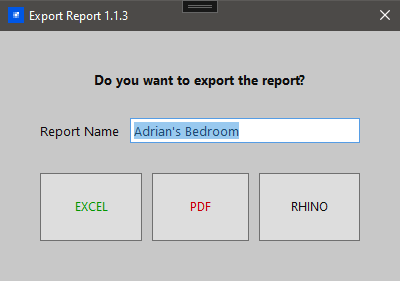
Export Report dialog (PRO): appears after nesting; choose Rhino, PDF, and/or Excel.
Export to Rhino Document
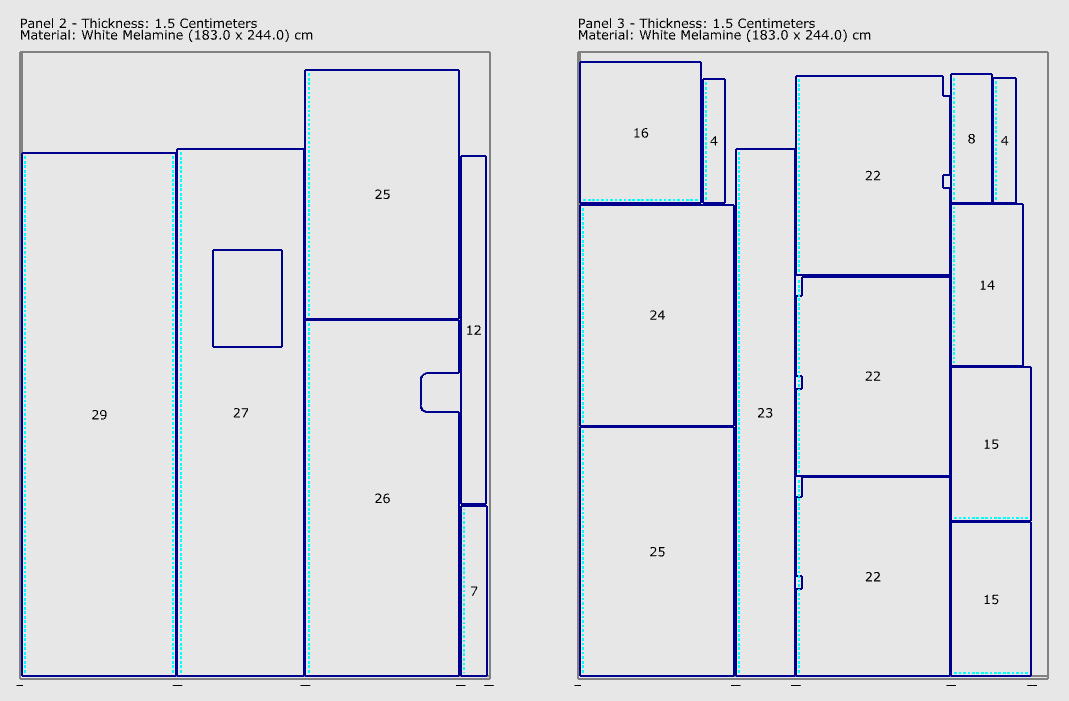
- Draws directly in active document
- Organized layers by function
- Smart labeling with four modes
Export your nesting results directly to your Rhino document for layout review and visual verification in the model — shop reference, not machine code.
Available in: Free and PRO
PDF Export
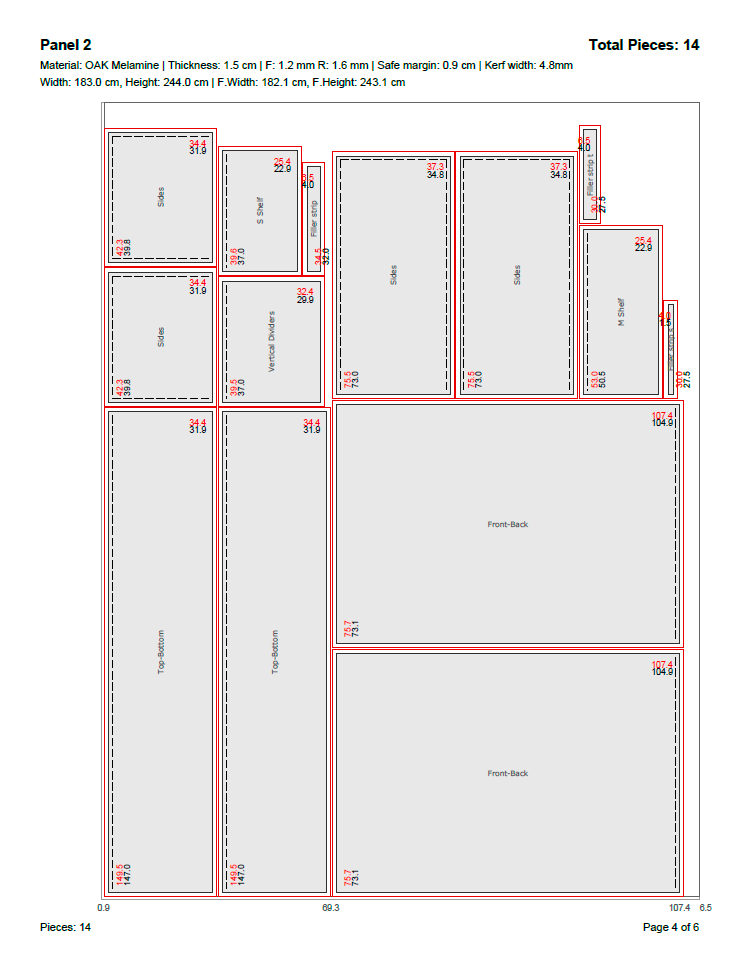
- Visual layout with accurate scaling
- Detailed statistics and cut lists
- Piece labels with full information
Generate PDF reports with visual layouts, statistics, and piece information based on nest dimensions and settings.
Available in: PRO
Excel Export
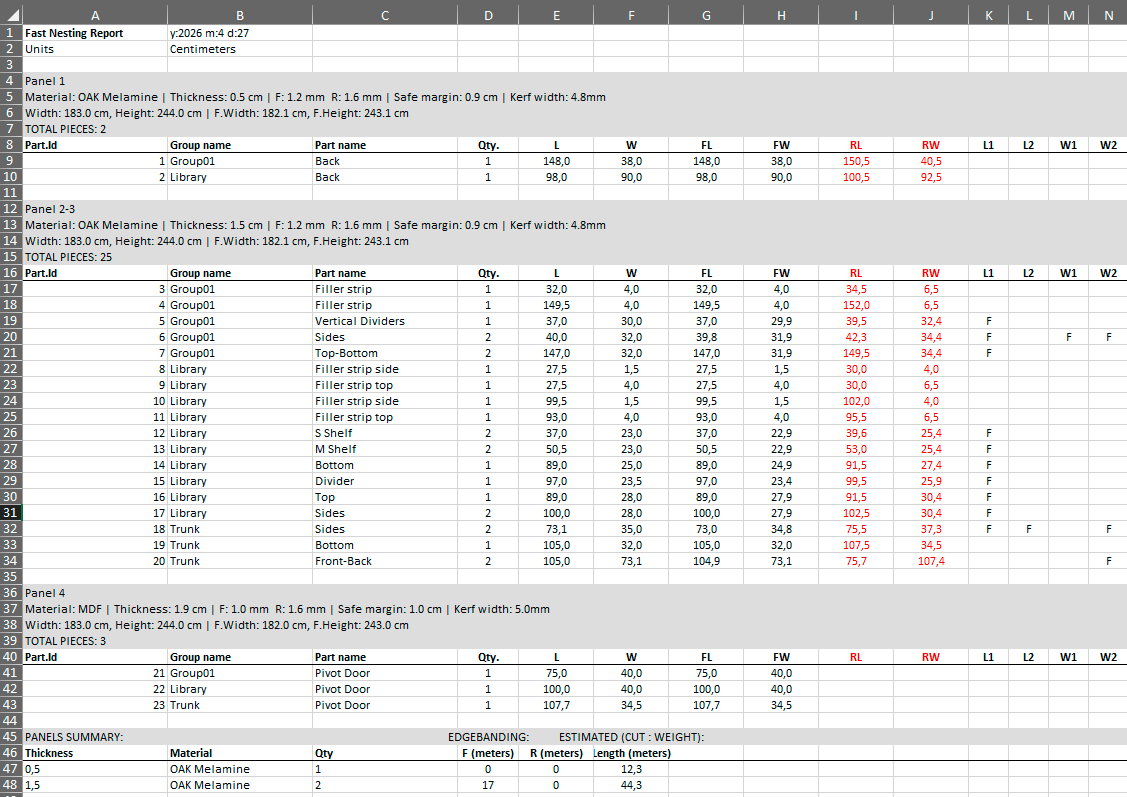
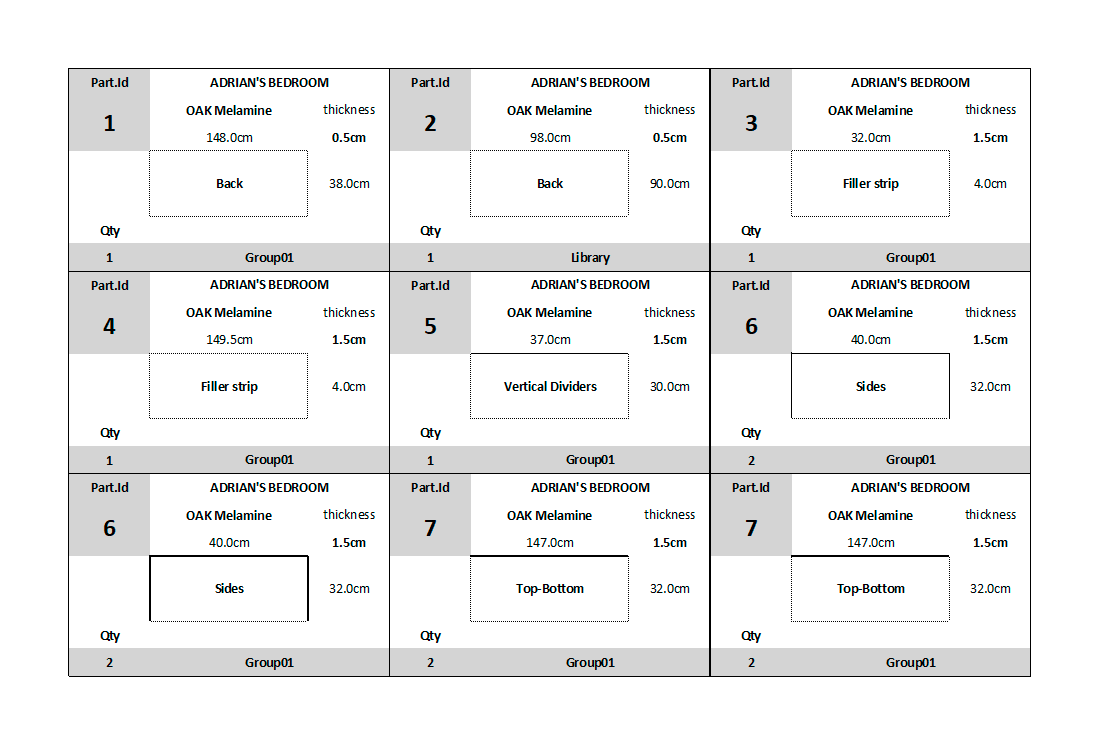
- Detailed cutting lists by material
- Separate worksheets for cut list and part labels
- Cut lists from nested dimensions and settings
Export Excel spreadsheets with cutting lists, material summaries, and sticker labels derived from nested dimensions and settings. In Settings you can choose which report columns to include and optionally add a barcode on labels.
Available in: PRO
Understanding the nesting layout in Rhino
After running FastNesting, the result is drawn in your Rhino document. Each panel title shows thickness, Usage %, and Parts so you can read utilization at a glance (the same style appears on PDF nesting diagrams). This section explains how to read the layout: line types, layers, and dimensions (including when oversize is used). These FastNesting layers are output layers for the nested result — they are separate from the material layers on your source solids (the Rhino layer names that become the Material column). For export formats and availability, see Export & Reports.
Piece outline (contour)
Each nested piece is drawn with a continuous (solid) outline. The outline takes the color of the material layer the piece belongs to, so pieces of different materials are easy to tell apart at a glance. It lives on Parts → Placed Bounds → Outline.
Edgebanding lines
Edgebanding is drawn on the Parts → Edgebanding layer, by default in cyan (light blue). The lines are offset slightly inward from the piece edge — not exactly on the border — so they are easier to read against the outline. The line style tells you the banding type on that side:
- Continuous (solid) lines indicate R (rigid) edgebanding on that edge.
- Dashed (non-continuous) lines indicate F (flexible) edgebanding on that edge.
Clearance (roughing) contour
When Part Oversize is set in Panel Parameters (PRO; formerly Part Clearance), FastNesting draws the outer rough-cut contour on the Parts → Clearance layer, by default in red. This is the oversized stock outline (with its oversize dimensions) that surrounds the finished piece — see double dimensions below.
Machining drawing line types
With Machining Drawings enabled (PRO), cuts, slots, and holes are drawn on the Parts → Machining drawings sublayers (Outline & slots and Drill Holes in dark blue, Drill Centers in black). The line style encodes depth:
- Continuous (solid) lines for through features: piece edges, pockets, and holes that go all the way through the panel.
- Dashed lines for blind (non-through) features: boxes, channels, and drillings that do not pass through, including back-face holes.
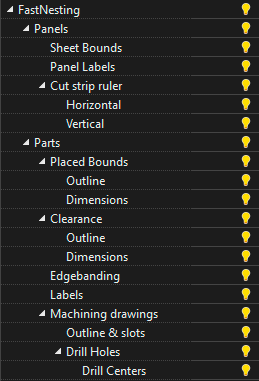
Layers created by FastNesting
FastNesting organizes the nesting result under a FastNesting parent layer with fixed sublayers. These do not replace your model’s material layers (input); they only structure the drawn layout and PDF content.
- Panels → Sheet Bounds (panel rectangles), Panel Labels (title blocks), Cut strip ruler (horizontal/vertical cut positions).
- Parts → Placed Bounds (Outline + Dimensions), Edgebanding (PRO), Labels (part number/name on each nested piece).
- Parts → Clearance (PRO, when Part Oversize is on): Outline + Dimensions for the rough-cut contour.
- Parts → Machining drawings (PRO): Outline & slots, Drill Holes, Drill Centers. Hiding these sublayers also excludes them from PDF export.
- FastNesting → 3D piece numbers (PRO, optional in Settings): Text dots anchored on original 3D solids — not the same as 2D Parts → Labels on the sheet. Use
Show3DPieceNumbers_FastNestingor enable auto-labeling in Settings; see Command reference.
Toggle sublayer visibility in Rhino to show or hide specific elements for plotting or export.
Double dimensions when roughing is applied
When Part Oversize is set (PRO), each piece has an outer rough contour and an inner finish contour. The layout and reports can show two dimensions for the same edge:
- Rough (outer) dimension: the size to cut first, including the roughing allowance.
- Finish (inner) dimension: the final size after trimming or machining.
Both may appear on the Rhino drawing and in the PDF so the workshop knows which dimension is for the rough cut and which for the finish cut.
Smart Labeling System
FastNesting offers four labeling modes to suit different production workflows:
Numbers Only
Clean, minimal labels showing only piece numbers for efficient CNC operations.
Names Only
Descriptive labels showing only piece names for easy identification during assembly.
Number + Name
Combines the part number and name for shop-floor identification with compact labels.
All Information
Complete labels including numbers, names, groups, and dimensions for comprehensive documentation.
Command reference
FastNesting
Main command to start the nesting process. Select your pieces first, then run this command. On the first run, FastNesting opens Settings once; then it opens the Selected parts configurator. Click Continue to run nesting; when nesting finishes, PRO users see the Export Report dialog (Free draws the Rhino layout automatically). See Running FastNesting for the full workflow.
License_FastNesting
Activate your PRO license or view your current license status. The dialog shows your computer alias (a readable name for this install), license level, and Deactivate License when PRO is active. If you are on the Free edition and a PRO trial is available, you will also find a link there to request a PRO trial — FastNesting will ask for your email address to confirm eligibility. If all seats are already in use, FastNesting offers to release a remote seat and activate this computer in one flow. Deactivating releases this machine so you can activate elsewhere or re-activate here after reinstalling.
Settings_FastNesting
Opens the Settings dialog: report units, default panel parameters (with Edit… to open Panel Parameters), fraction precision, nesting layout origin (X/Y in Top View), layout label sizes, density unit (PRO), and 3D piece numbers on source solids (PRO) after nesting. Distinguish by machining (PRO) affects piece numbering. Panel per material is set from the Selected parts configurator.
Clean_FastNesting
With no selection (press Enter at the prompt): Asks whether to reset FastNesting settings to defaults. If you choose Yes, all plugin settings are restored to their default values. Restart Rhino afterward so that dialogs show the updated values.
With objects selected: Removes FastNesting metadata from the selected objects. Choose an option:
- PreserveNames — Removes FastNesting metadata but keeps the piece name (
FN_Name) and Rhino object name. - ClearNames — Same as above and also clears the piece name and Rhino object name.
The command only deletes user data (e.g. FN_*, Rotar_Pieza, Skip); it does not change the geometry.
GroupEdit_FastNesting
Opens the Group Edit dialog so you can rename Rhino groups and subgroups without ungrouping. Select objects from at most four different groups per session. The edited names are saved back to Rhino and appear in the Selected parts configurator, Excel reports, PDF reports, and labels.
Show3DPieceNumbers_FastNesting
In the FastNesting menu this appears as Find Part by Number (same command). After a nesting run, add or refresh Text dots on source 3D solids with their nesting list numbers. Run the command with no selection and type a piece number at the prompt — Rhino selects and zooms to that solid. With objects selected, only those solids receive or update 3D labels. Labels live on the FastNesting → 3D piece numbers layer. For automatic labeling after every nesting, enable 3D piece numbers on source solids in Settings_FastNesting.
Best practices
Before nesting, put parts that share the same sheet stock on the same Rhino layer. In FastNesting, the layer name is the material (shown read-only in the Selected parts configurator). Use clear layer names such as White Melamine 18 or Oak Veneer. In PRO, assign sheet size and options per material under Panel per material. See Selected parts configurator and Panel Parameters.
It's a good idea to name your parts when modeling in Rhino (Right panel - Properties:Object / name). Use descriptive names like "Doors," "Left_Door," "Top_Shelf," "Rear_Panel." However, you can also name each part in the Part Configurator. Remember, if you don't want a part to be considered for the process, you can name it by placing a ! before the name, for example, !handles.
Group parts by project for clear organization across sheets. Each project can include multiple sheet thicknesses, all tracked in the final report.
Use Rhino's SetGroupName command or GroupEdit_FastNesting to rename groups and subgroups without ungrouping.
Verify that the report units in Settings match how you want cut lists and labels to be shown. Mixing centimeters and inches can easily lead to confusion or incorrect scaling.
Use the real cutting width of your tool (saw or CNC). Make a test cut to determine the exact kerf, or use a slightly higher value as a tolerance.
When using Keep Grain Direction and the Grain.90° column:
- Treat Grain.90° as a fixed 90° orientation preference, not as free rotation
- Verify L1/L2/W1/W2 edge banding against the visual result after nesting
- Check the visual result in Rhino before exporting or printing
If you have multiple pieces of the same size but different edge banding, give them unique names. Otherwise they may be grouped together in the report.
For same-size pieces with different machining or mirror pairs that should get separate numbers, enable Distinguish by machining in Settings (PRO). When that option is on, machining signatures can help separate clearly different hole/slot patterns.
In the Panel Parameters dialog opened from Settings, click Save to store sheet size, kerf, margins, and nesting options as the global default for future sessions. Materials without their own panel use these values.
Troubleshooting & support
Command "FastNesting" not found
Possible causes:
- Plugin not installed correctly
- Rhino version incompatibility (need Rhino 7 or 8)
Solutions:
- Type
PackageManagerand verify FastNesting is listed - Try reinstalling by dragging the .yak file onto Rhino
- Check Rhino version: FastNesting supports Rhino 7/8 on Windows and Rhino 8 on macOS
License activation fails
Solutions:
- Verify you're using the same email address you used for purchase
- Copy-paste the license key to avoid typos
- Check that you have internet connection (required for activation)
- Make sure license key format is correct: XXXX-XXXX-XXXXX-XXXXXXXX
- Contact support@camonsoft.com if issue persists
Pieces don't fit on panels
What happens:
If some pieces are too large for your panel size, they won't be included in the layout. You'll see a message in the report indicating which pieces couldn't be placed.
Solutions:
- Use larger panel sizes
- Split large pieces into smaller sections in your model
- Check blade kerf and margins aren't too large
- Verify your units are correct (cm vs inches)
Measurement inconsistencies
Most common cause:
Wrong unit selection. If your Rhino model is in centimeters but you export reports in inches without noticing it, measurements can be misread.
Solutions:
- Check your Rhino document units: Type
Units - Select matching report units in
Settings_FastNesting - If measurements are exactly 2.54x off, you mixed cm and inches
2D machining drawing does not match the 3D model
What happens:
FastNesting reads the geometry directly from the Rhino solid to generate 2D machining drawings. If the source object has geometry problems — such as flipped normals, non-manifold edges, open surfaces, or self-intersecting faces — the plugin may misread face orientation or boundaries, producing a 2D representation that does not match what you expect.
Solutions:
- Before nesting, check your solids for geometry issues: in Rhino, select the object and run
CheckorSelBadObjects - Fix flipped normals with
Dirand flip any inverted faces - For non-manifold or open edges, try
Join,RebuildEdges, or remodel the piece as a clean closed solid - Always visually verify the 2D machining drawing against the 3D model before sending to production
Purchase & invoice (business details & VAT)
Payments are processed securely by Paddle (our merchant of record). If you need your company name, VAT / tax ID, and billing address on the tax invoice, you can add them during checkout.
Where to enter business details
- On our checkout page, choose your product and enter your email and name, then click to open the secure payment window.
- Enter your email and country on the first step, then click Continue.
- On the payment step (card or PayPal / Google Pay), look at the order summary on the left. Below the VAT line you will see a link: Add VAT number.
- Click Add VAT number. A form opens where you can enter your VAT number, company name, street address, city, state/county, and postcode (fields may vary slightly by country).
- Complete the payment. Those details are included on your Paddle tax invoice.
The Add VAT number option appears on the payment step (after Continue), not on the first screen—look for it in the left-hand order summary next to the payment form.
If you need help after purchase, contact support@camonsoft.com.
Frequently Asked Questions
How does the trial period work?
A new install starts in PRO trial for 10 calendar days (no Rhino session counter). In version 1.2.0, eligible Free users who update may also be offered a fresh 10-day PRO trial through the welcome dialog — opt in with your email if you want it.
When the trial ends, FastNesting switches to the Free edition unless you activate a PRO license.
What happened to Regeneration mode?
Regeneration mode let you rebuild Excel and PDF reports from an existing nesting layout in Rhino without running the nesting solver again.
New features in FastNesting changed how layout data is stored and processed. Re-exporting older nestings without a fresh run could produce undesired or unreliable results (wrong piece lists, mismatched labels, or incomplete reports).
Regeneration mode was removed in version 1.2.0 and later. It is not part of the current workflow.
Workaround: run FastNesting again on your parts to generate fresh PDF and Excel reports.
What is the Mult column? How is it different from Qty?
Qty is how many physical copies of that part exist in your Rhino model. Mult (PRO, since 1.2.0) asks FastNesting to nest additional virtual copies without duplicating solids in Rhino — useful when you need more instances on sheets than you modeled. The Excel/PDF report shows the nested quantity; Qty in the configurator stays tied to your model.
What happens after the trial expires?
After the trial ends, FastNesting switches to the Free version. In Free you can:
- Run nesting with up to 16 pieces per nesting
- View and use the nesting layout in Rhino
- Use the plugin to measure and work with pieces
Free does not include: edge banding (R/F) calculation, PDF or Excel export, Machining Drawings, panel parameters per material, Part Oversize, estimated weight in reports, or 3D piece-number labels. You can upgrade to PRO at any time from the license dialog or from our website to unlock all features.
Do I need internet to use FastNesting?
Internet access is required for PRO license activation and deactivation. Normal nesting work continues offline after activation.
Is the PRO license lifetime?
Yes! Your PRO license is lifetime for that version of FastNesting. You'll receive free updates to that version. If a major new version is released in the future, you can continue using your current version or purchase an upgrade license for the new version.
What happened to the three-computer license?
New purchases are FastNesting Pro for one machine at a time — not in parallel on multiple computers. If you already bought the three-computer plan, nothing changes: you can still use up to three machines at once.
Can I get a refund?
You have the 10-day PRO trial to fully test FastNesting before buying, so you can try all features and know exactly what you're getting. We don't normally process refunds because of that. If you still need to reverse your purchase, our payment processor allows chargebacks or refund requests within 1 to 2 weeks after the purchase; contact us or use the option provided by the processor within that period.
Which Rhino versions are supported?
FastNesting works with Rhinoceros 7 and 8 on Windows. On Mac, only Rhinoceros 8 is supported.
How do I reset all settings?
Run Clean_FastNesting, press Enter without selecting any objects, then choose Yes to restore all FastNesting settings to their default values. Restart Rhino afterward so that dialogs show the updated values.
Where is FastNesting available?
You can get FastNesting in three ways: from Food4Rhino (the official Rhinoceros 3D plugin marketplace), from our website, or directly inside Rhino via the Package Manager (PackageManager command, then search for FastNesting). All three options provide the same plugin; choose the one that suits you best.
How many pieces can I nest in PRO version?
PRO does not publish a fixed piece-count cap. You can nest large jobs typical of cabinet and furniture production. Practical limits depend on Mult values, geometry complexity, and your computer. The Free edition remains limited to 16 pieces per nesting after the trial ends.
How do I assign or change materials?
In FastNesting, each part’s material is the name of its Rhino layer. Assign materials before nesting by placing solids on the correct layers in Rhino’s Layers panel (for example one layer per sheet stock). The Material column in the Selected parts configurator is read-only — change the layer in Rhino, then run FastNesting again. In PRO, set sheet size and options for each material under Panel per material (see Panel Parameters).
Does FastNesting have a toolbar?
No. FastNesting is command-based. Simply type FastNesting to start. This keeps your Rhino interface clean and works consistently across all Rhino versions.
What export formats are supported?
After nesting, FastNesting can draw a layout in the Rhino document (Free and PRO) for visual review. PDF and Excel exports are available in PRO — report-ready layouts and cut lists based on nest dimensions and settings.
Should I verify the 2D machining drawing before production?
Yes. FastNesting reads geometry directly from the Rhino solid, so the quality of the 2D machining drawing depends on the quality of the 3D model. Objects with flipped normals, non-manifold edges, or open surfaces can produce unexpected 2D representations. Always compare the 2D machining drawing with the original 3D model before sending to production.
What can FastNesting PRO do?
These features are included in a PRO license and during the PRO trial. With PRO, FastNesting offers:
- Large-scale nesting with optimized layouts grouped by material and thickness (no published piece-count limit for PRO).
- Machining Drawings: 2D machining details (holes, slots, outlines) with Side A, Side B, and X-ray display modes. Mirrored parts are drawn correctly.
- Edge banding (R/F): Calculates and groups rigid and flexible edges per piece. Presets include 0 mm for BOM-only traceability.
- PDF & Excel export: Report-ready cutting layouts, stickers, and cut lists from nested dimensions.
- Panel parameters per material (Rhino layer): Different panel sizes and settings for each material.
- Part Oversize & estimated weight: Optional cutting margin per piece with weight calculations in reports.
- Smart Labeling: Four modes — Number, Name, Number & Name, and All (Free: Number only).
- 3D piece numbers: Optional Text-dot labels on source solids after nesting; use Find Part by Number in the menu (command
Show3DPieceNumbers_FastNesting) to find parts by list number. - Mult: Nest additional virtual copies without duplicating solids in Rhino.
- Rotation Priority Auto: Compare more layouts when grain direction is off.
- Seat management: Release a remote seat and activate this computer when your license limit is reached.
Can I suggest new features?
Send feature requests to support@camonsoft.com and we'll consider them for future updates.
Need More Help?
Can't find what you're looking for? Our support team is here to help you get the most out of FastNesting.